The Boneyard / Connect
Connect to the Boneyard
Below you will find details on how to connect to The Boneyard BBS. The walkthrough uses SyncTERM which you can download free from syncterm.bbsdev.net.
Connection info
Why port 8073? That's kind of an odd port
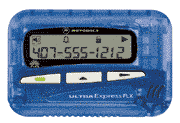
Back in the days of pagers before phones could text, we used to send messages to each other using numbers where each number represented a letter of the alphabet.
So for example 8 could be A, or B, 0 would be O, 7 could be T or N, and 3 would be E. So 8073 would read "Bone", which fits the theme of the board.
Step-by-step with SyncTERM
Use the bare domain — not www. The website lives on www; the BBS lives on .
-
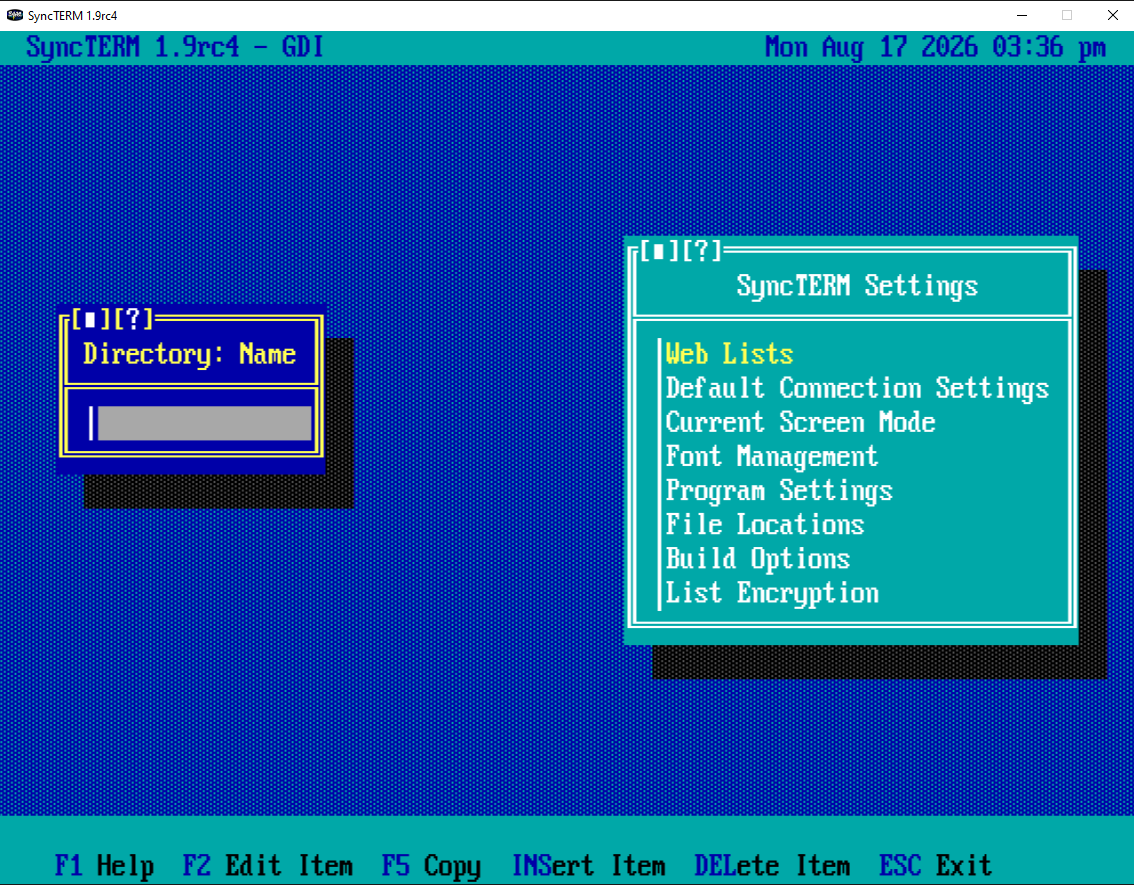
Open SyncTERM
Launch SyncTERM. You will land in the directory / settings screen.
-
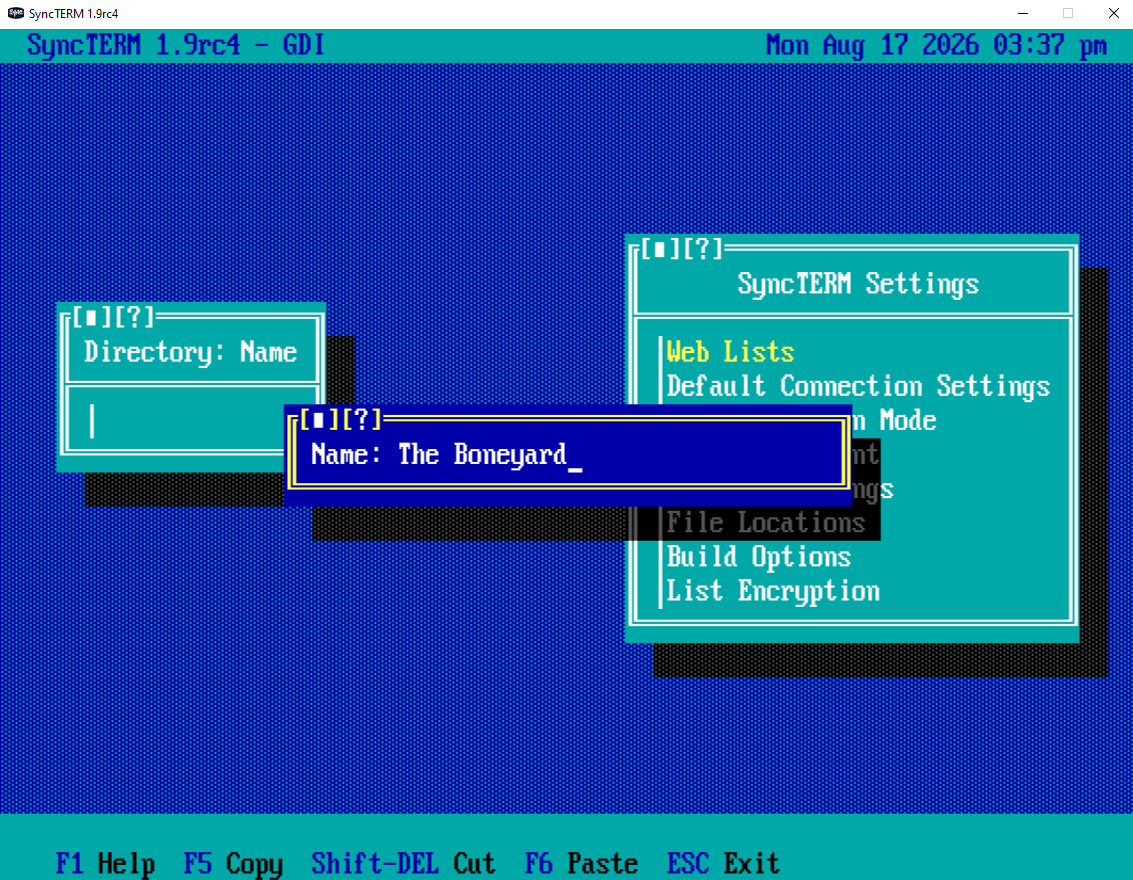
Add a directory entry
Press INS (Insert Item) to add a new connection. When prompted for a name, enter something you will recognize — e.g. The Boneyard.
-
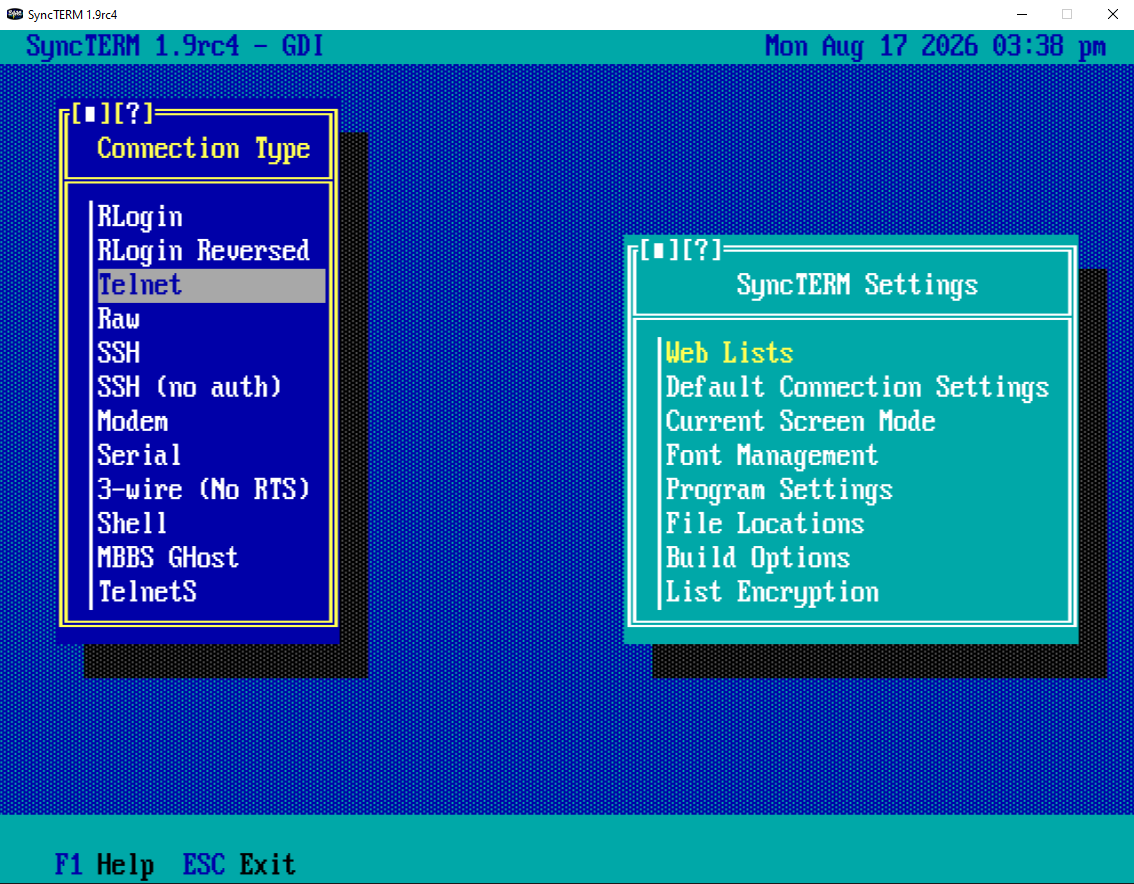
Choose Telnet
Select Telnet as the connection type.
-
Enter the address
Type
and confirm. Host and port together, colon included.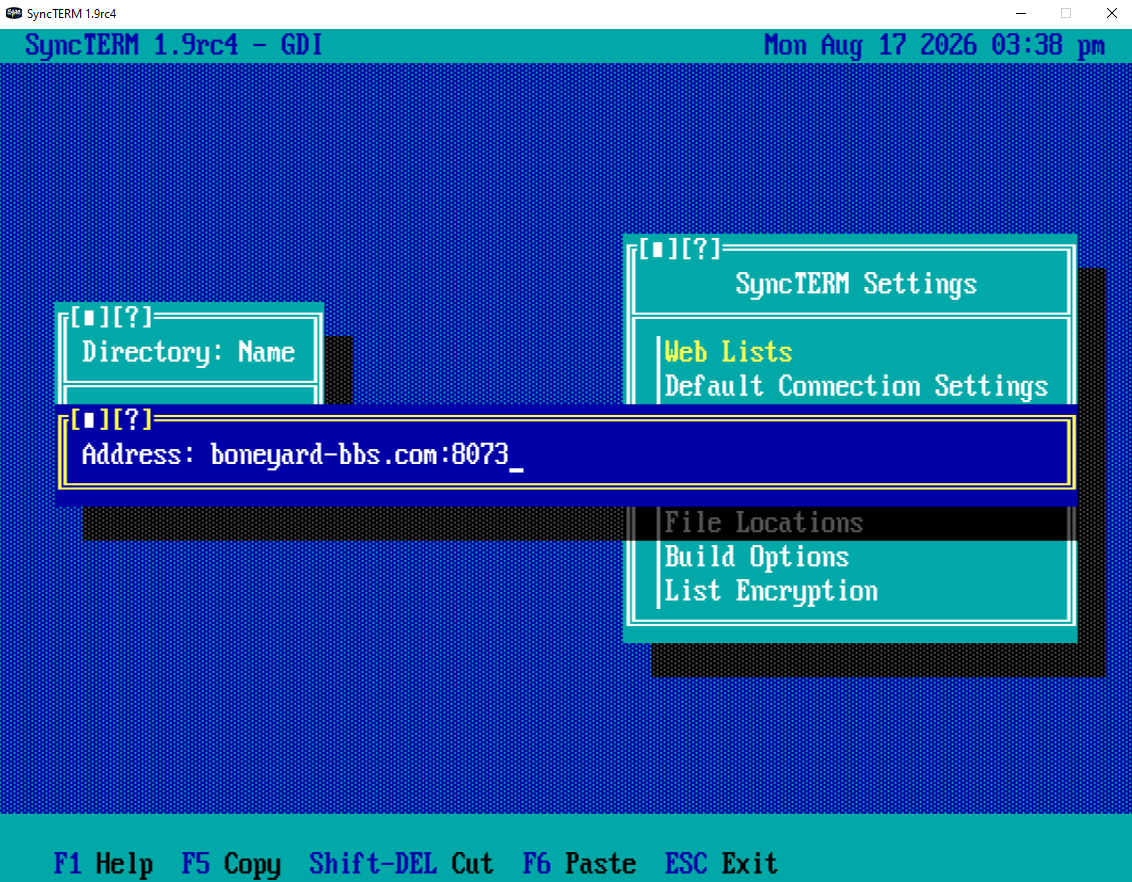
-
Connect
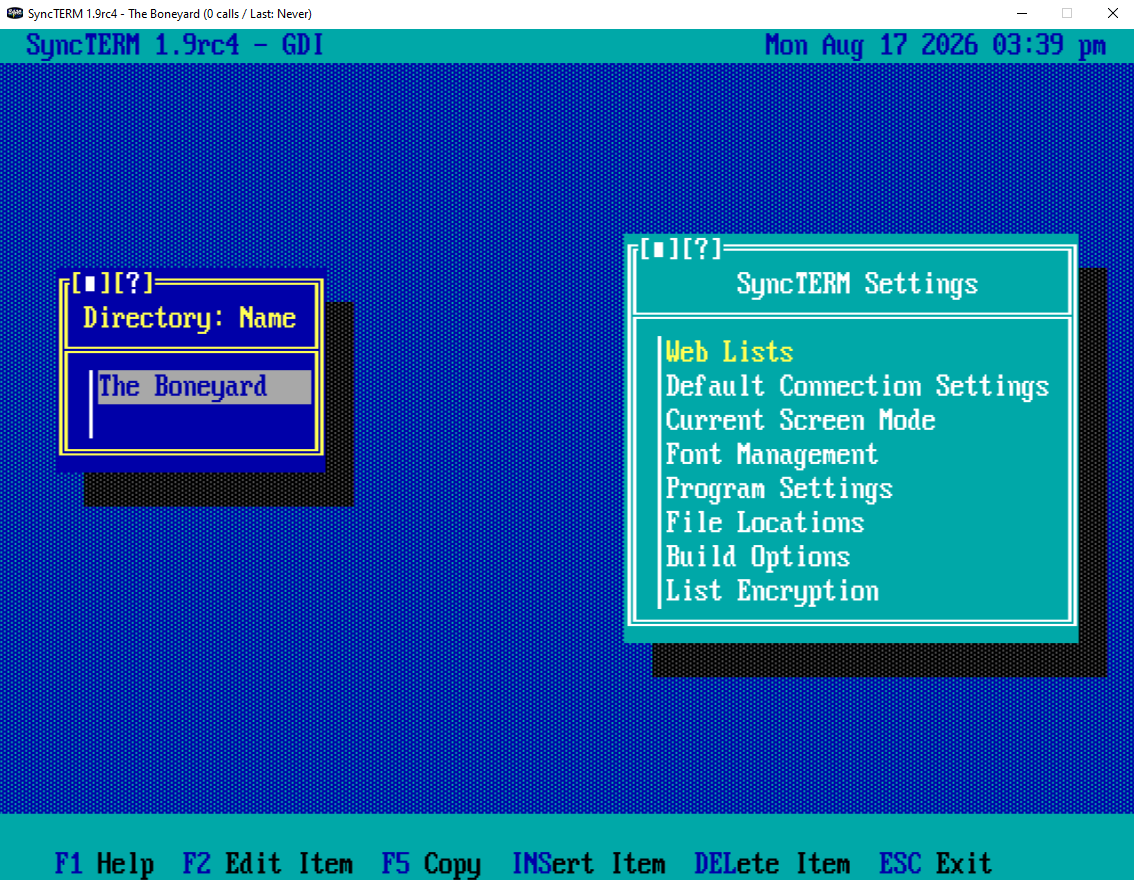
Press ESC to leave settings. Select The Boneyard in the directory and press Enter (or double-click) to dial in.
-
Past the splash screen
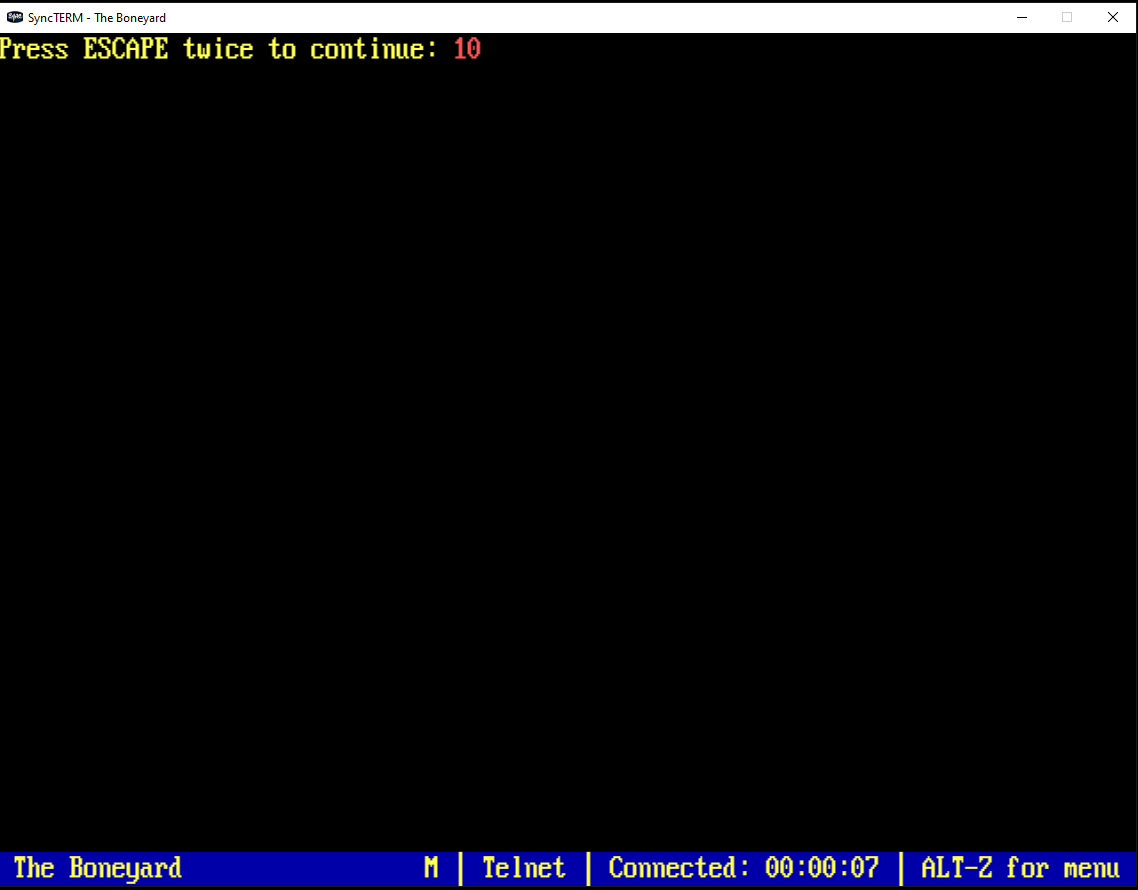
When the board asks you to press Escape, hit ESC twice to continue into the login stack.
-
Enter your handle
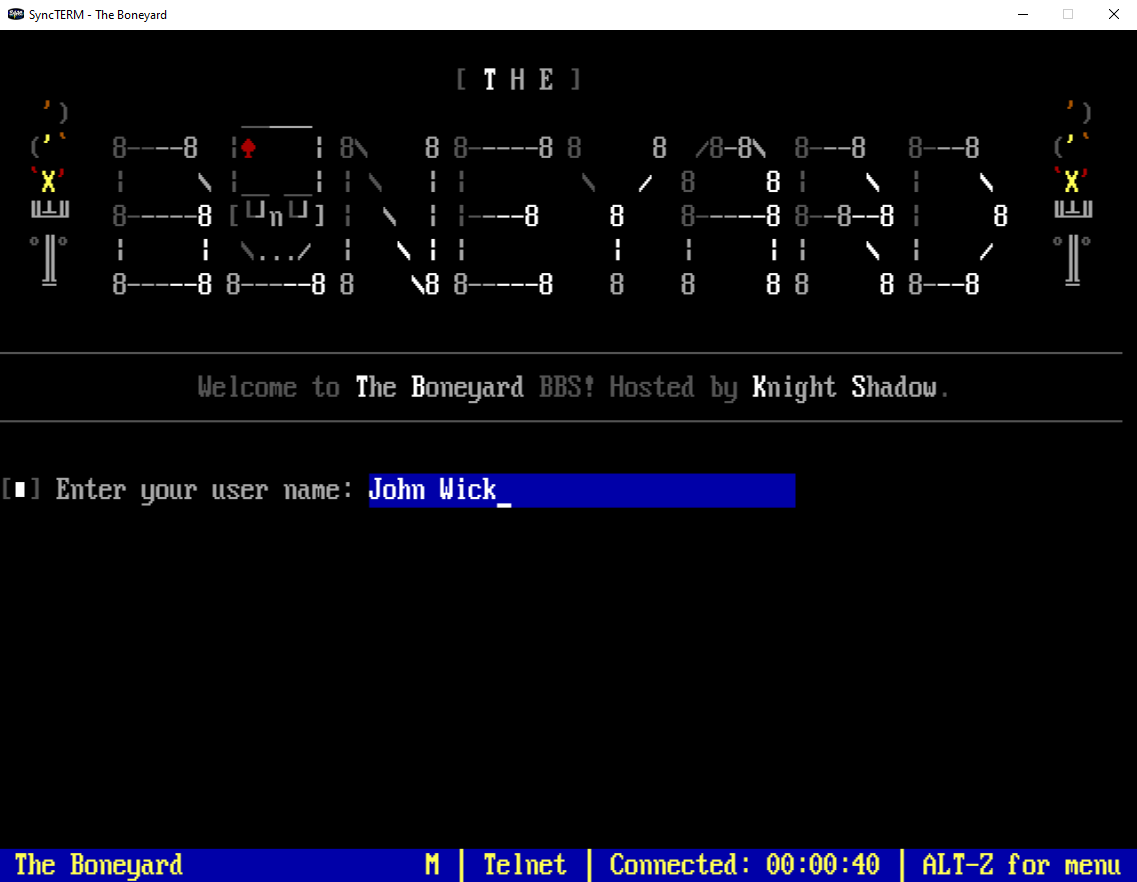
Type the username you want. If you are new, pick a handle you can live with — that is who you are on the board.
-
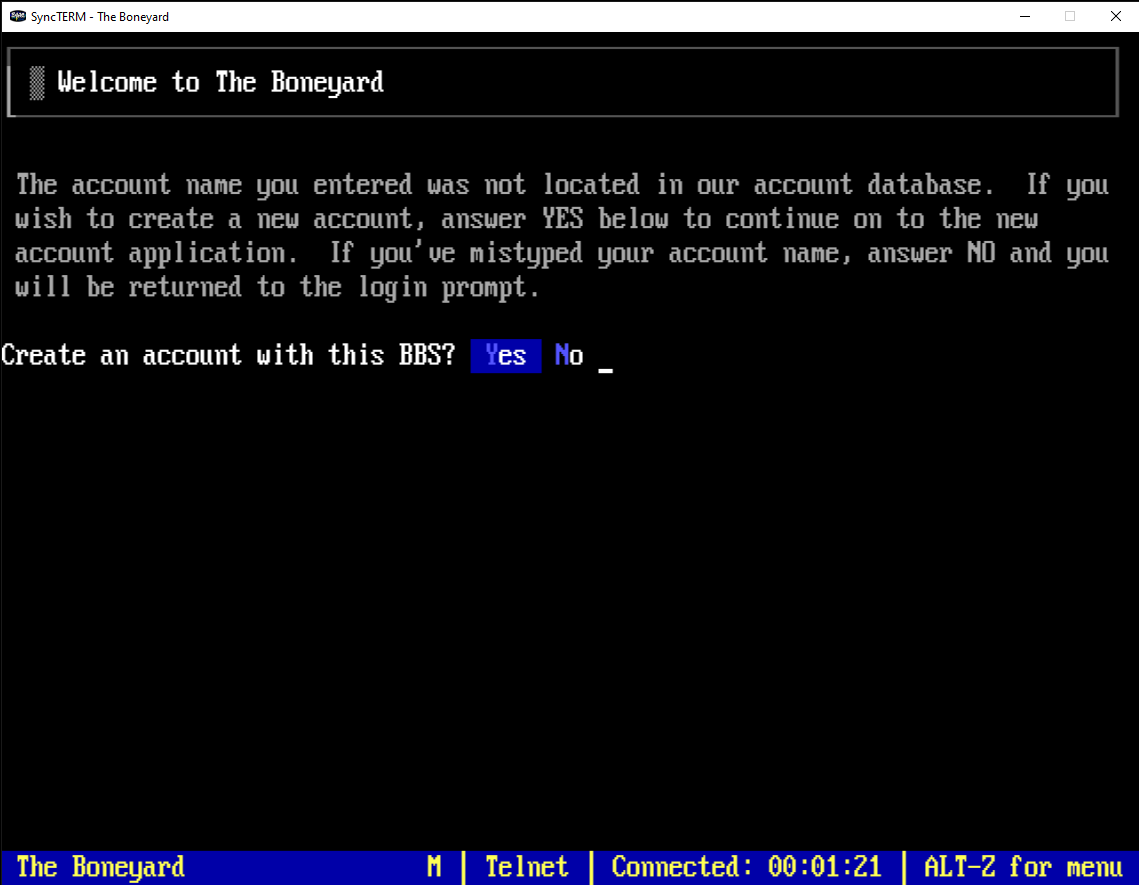
Create a new account
If the name is not on the system yet, Mystic will ask whether to create an account. Choose Yes.
-
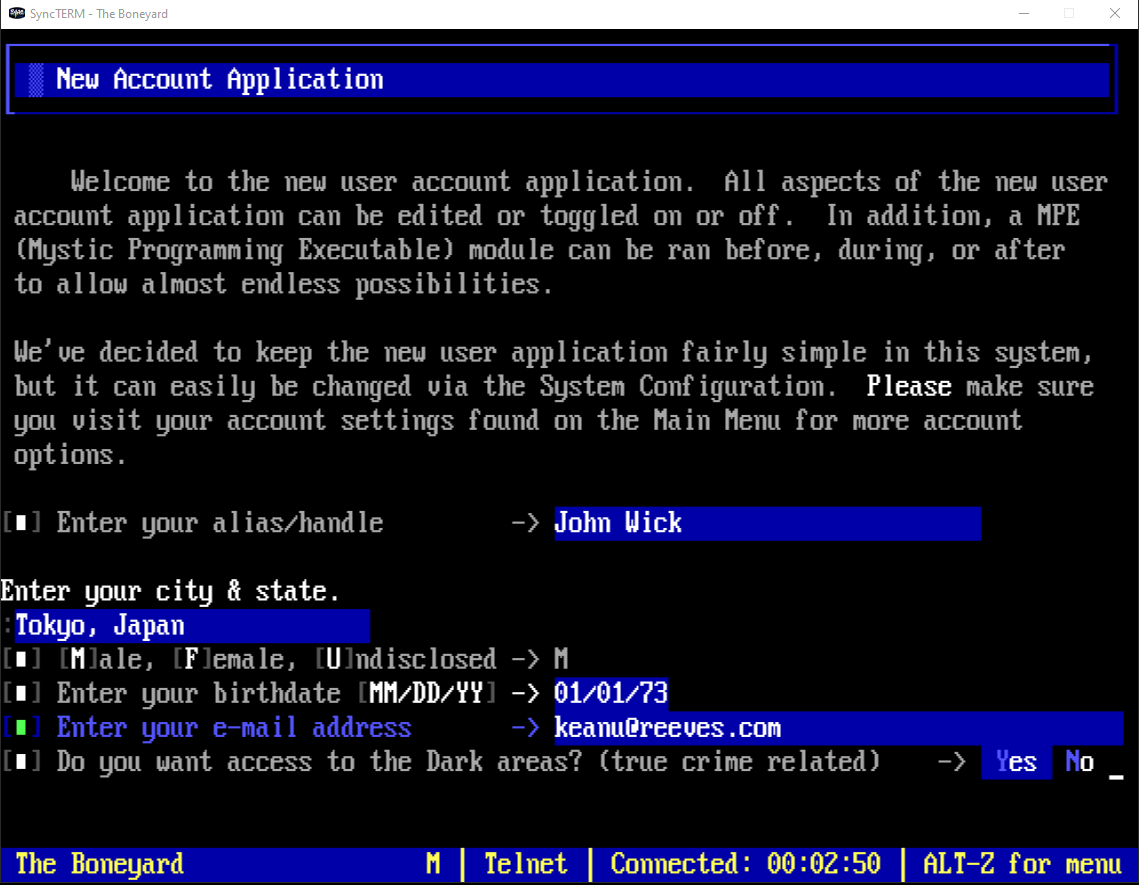
Fill out the application
Work through the new-user form: handle, location, and the rest. Answer honestly; you can change most of this later from the main menu.
-
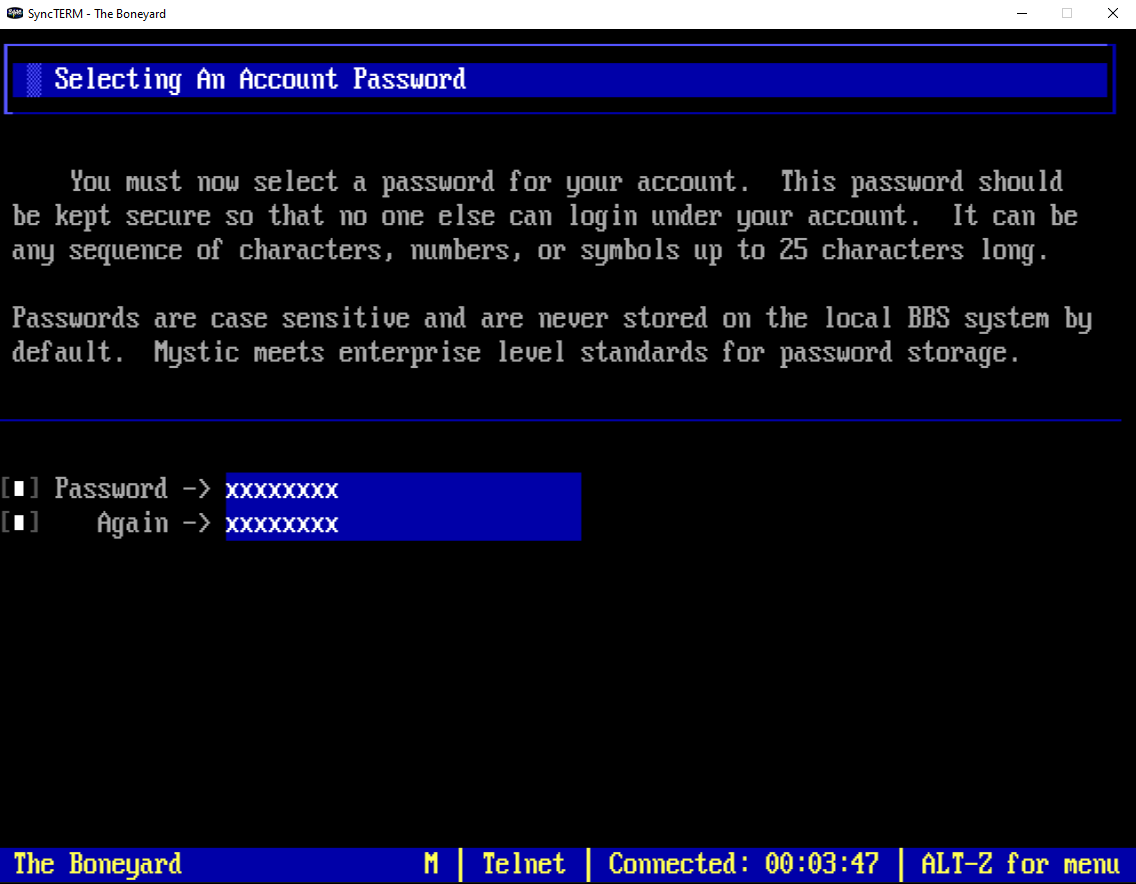
Set your password
Pick a password and enter it twice. Passwords are case-sensitive and up to 25 characters.
-
Introduce yourself to the sysop
The board asks you to send a short note to Knight Shadow so we know a real person signed up. Press a key when you see
[Paused]to continue.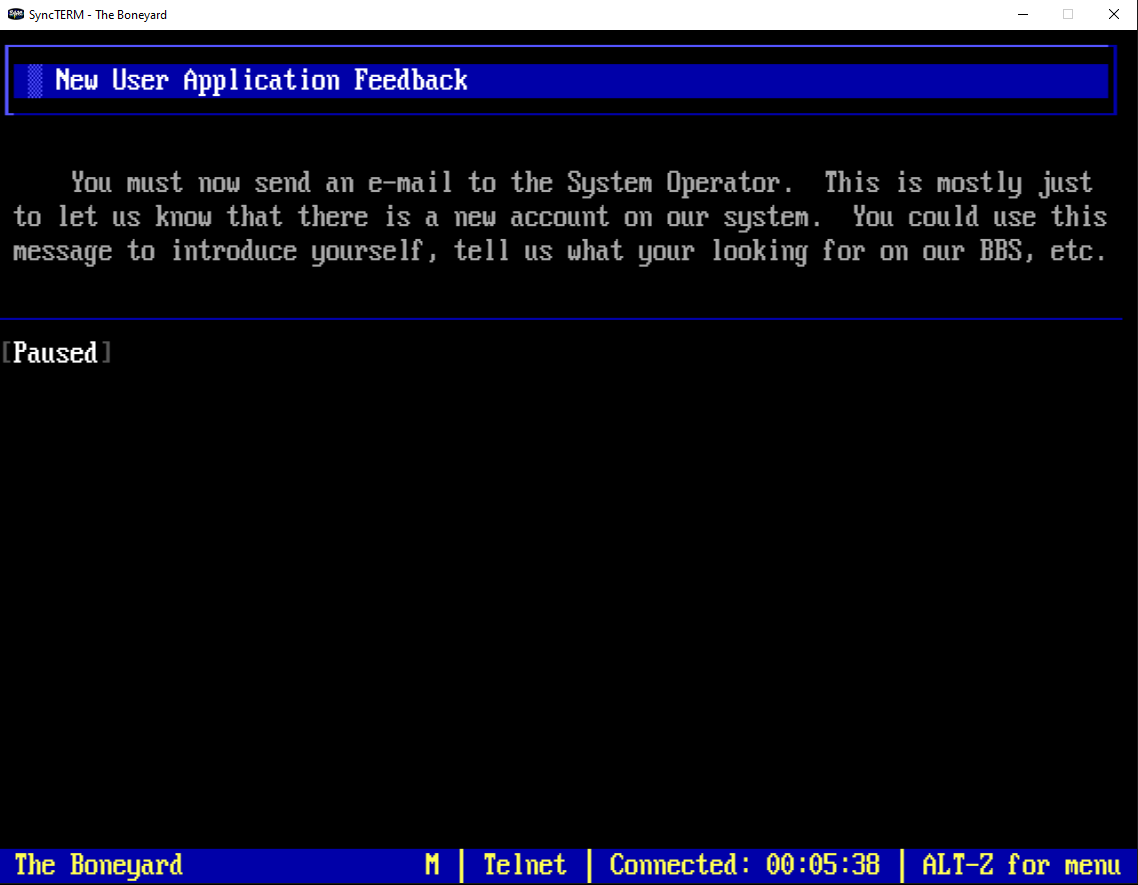
-
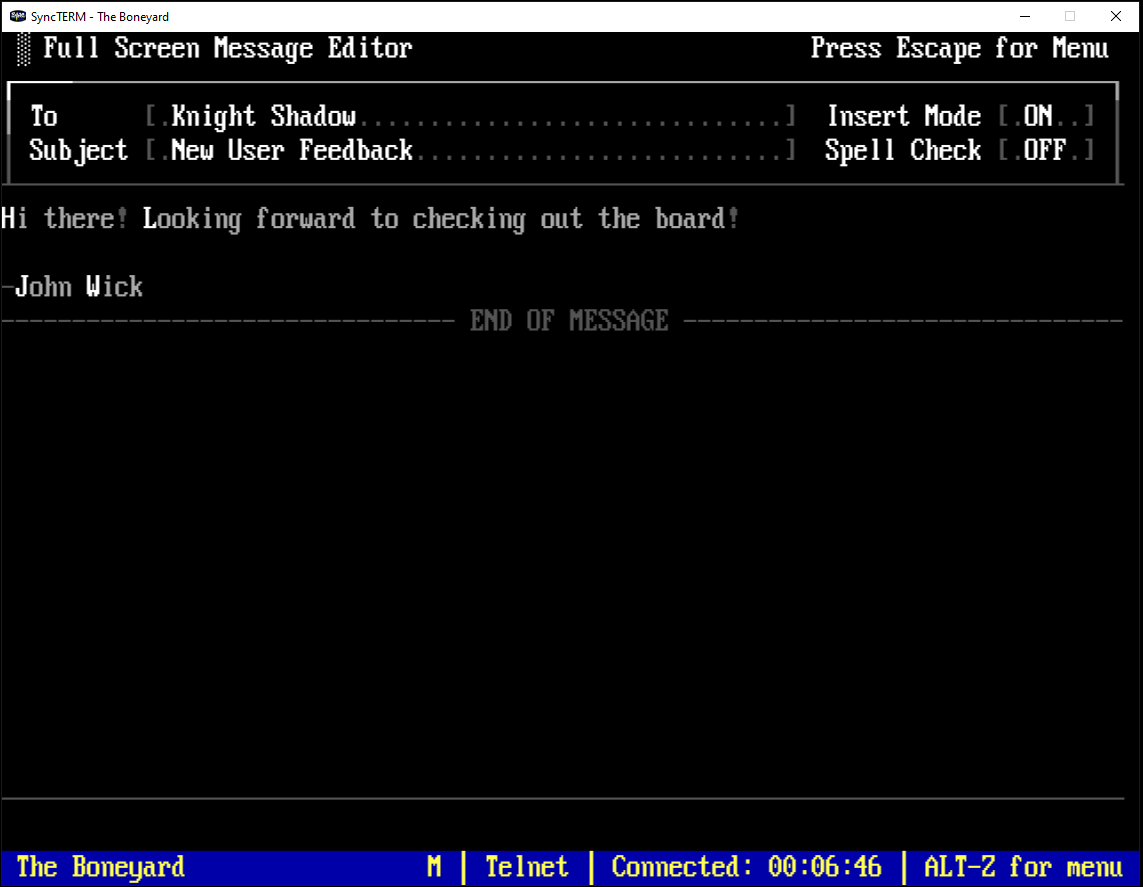
Write your message
Type a quick hello in the full-screen editor. Say who you are and what brought you here — a sentence or two is plenty.
-
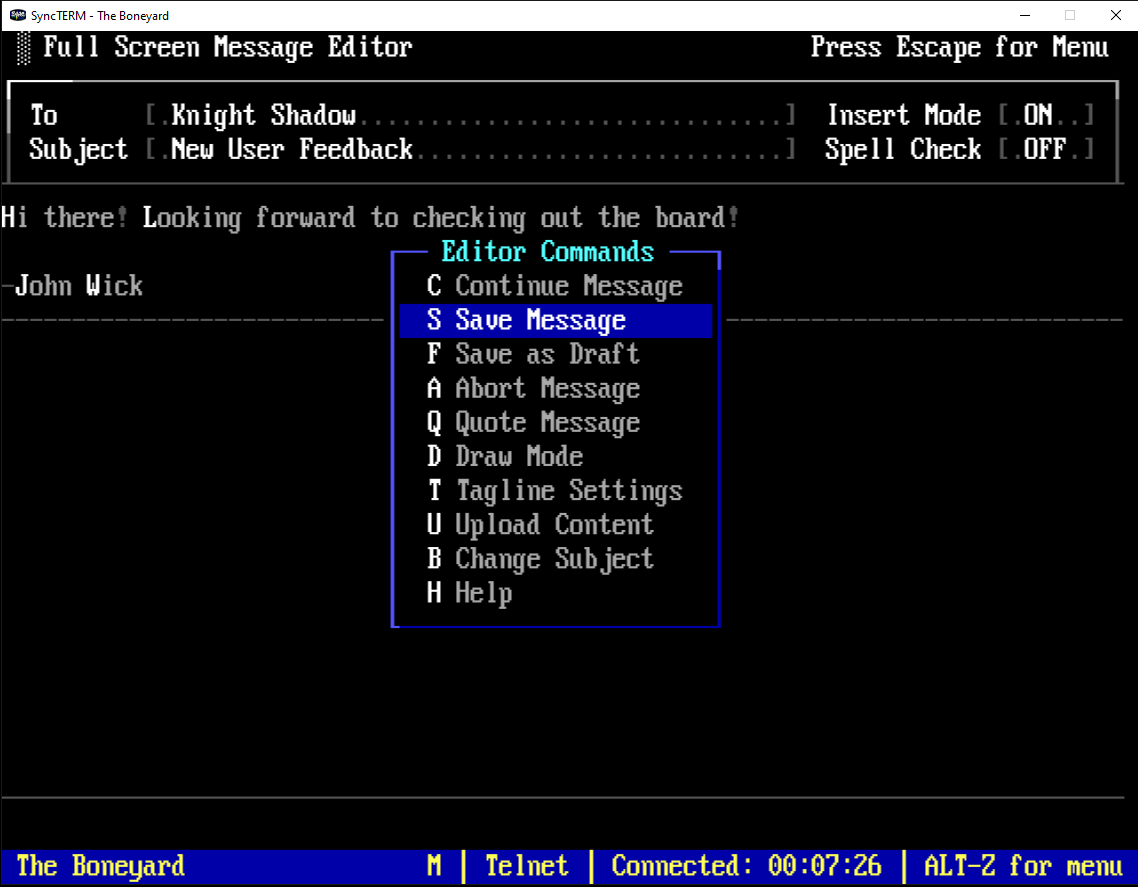
Save and send
Press S for Save Message in the editor command menu.
-
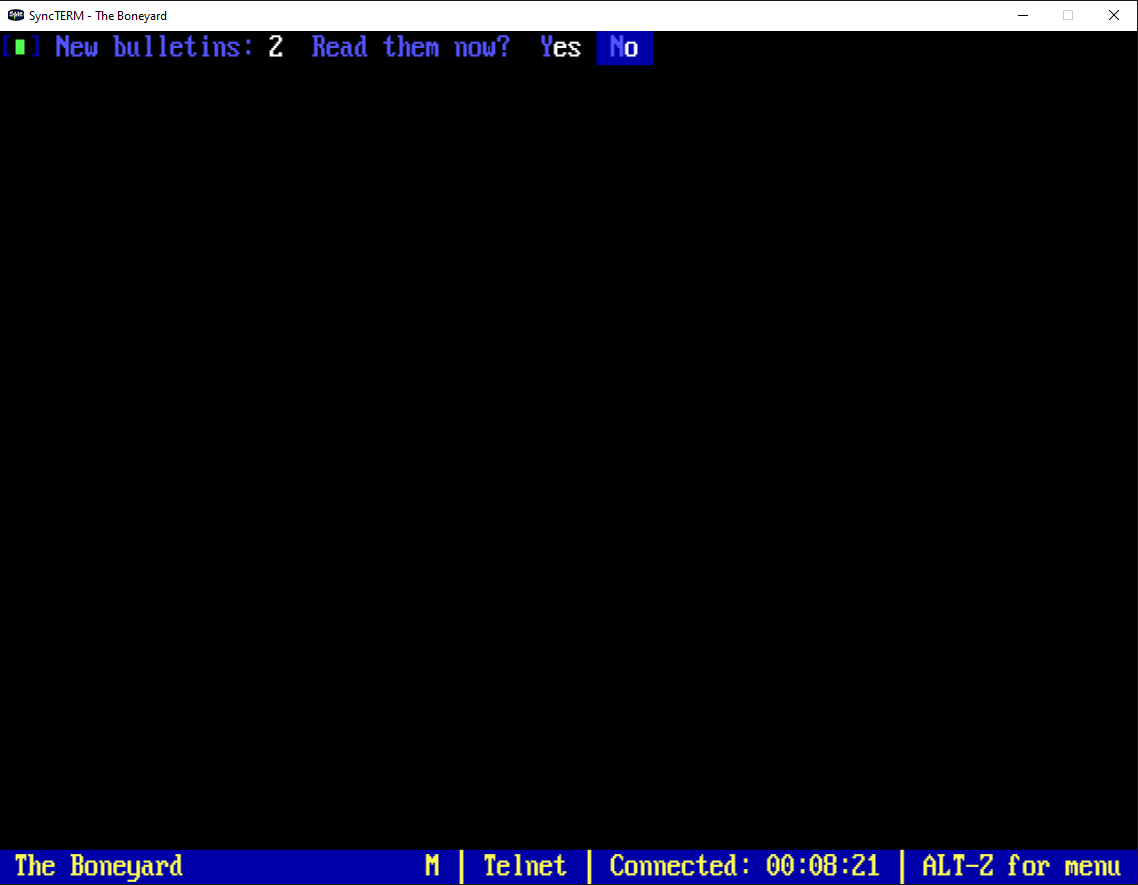
New bulletins
Mystic may ask if you want to read new system bulletins. Your call — Yes if you want the news, No to skip for now.
-
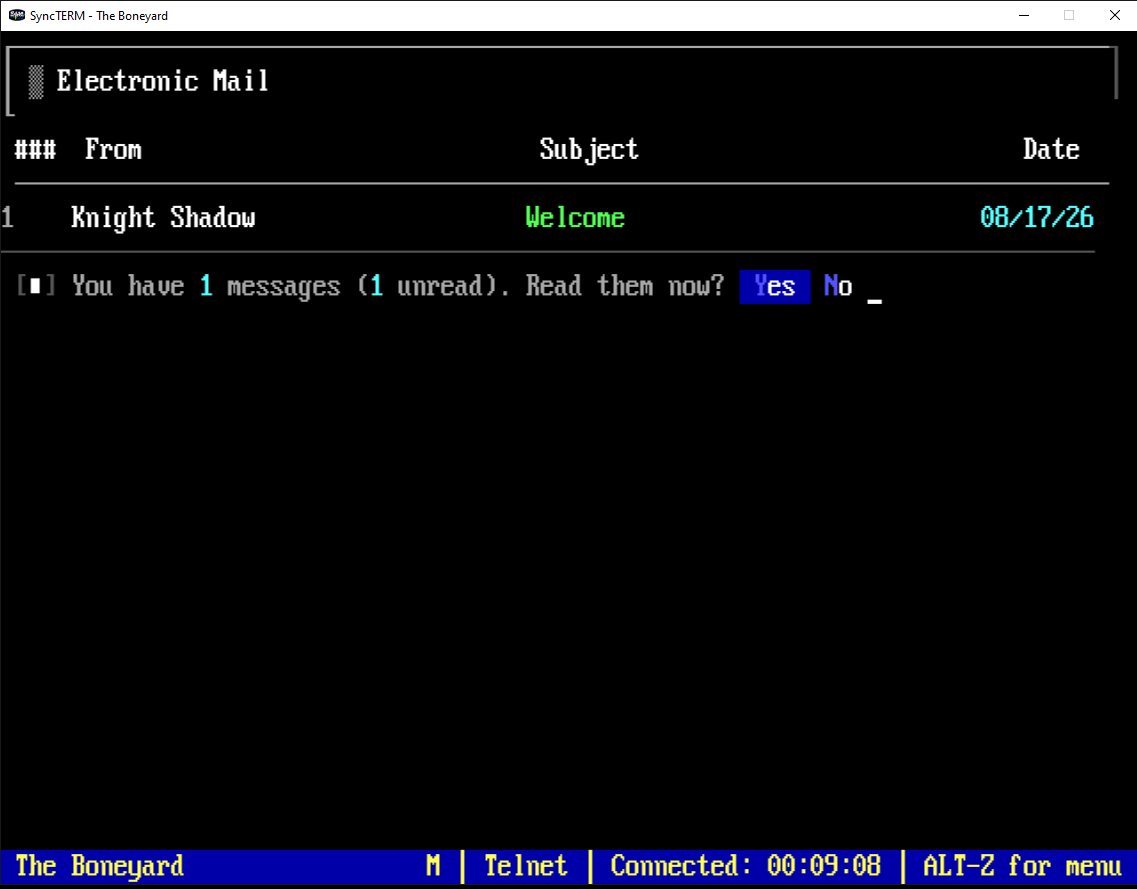
Welcome mail
You will have mail waiting from the sysop. Choose Yes to read it now — worth the minute.
-
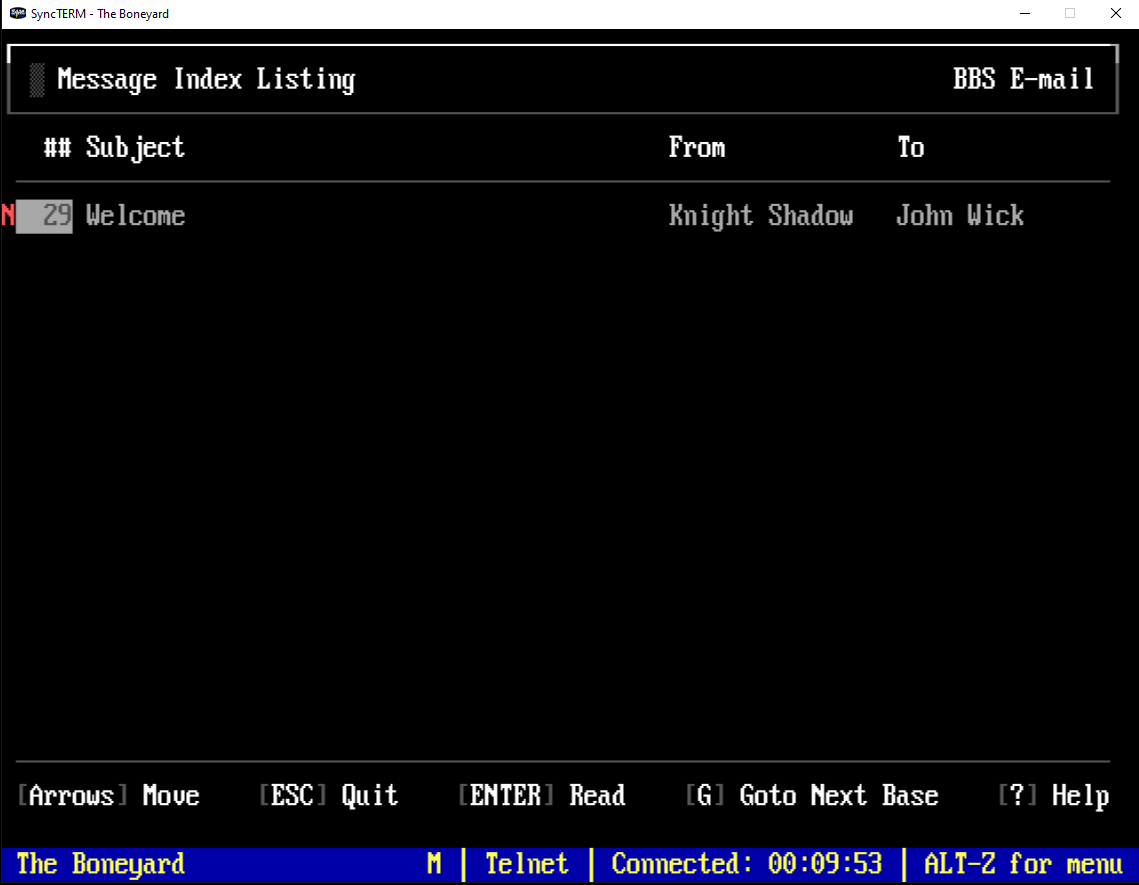
Open your inbox
Select the welcome message and press Enter to read it.
-
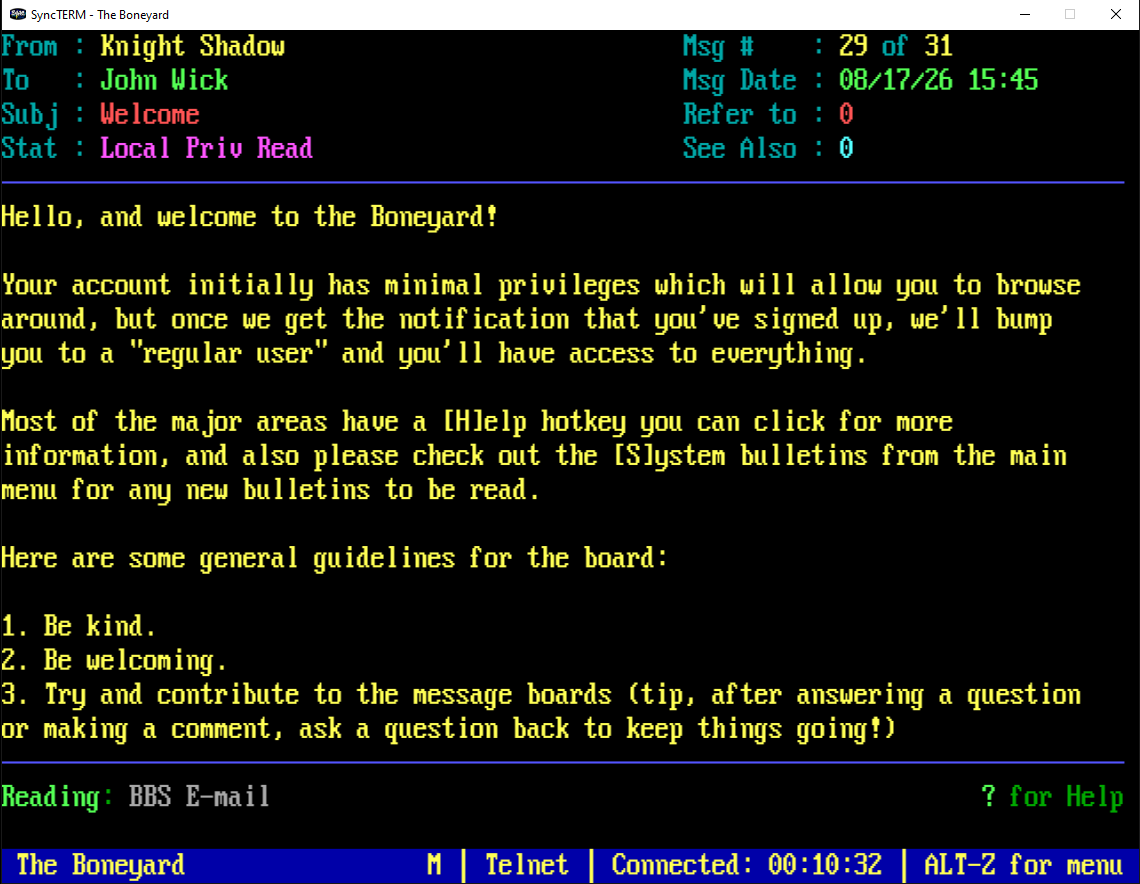
Read the welcome
Knight Shadow’s welcome note covers privileges, help keys, and how we behave here. Press a key when you are done reading.
-
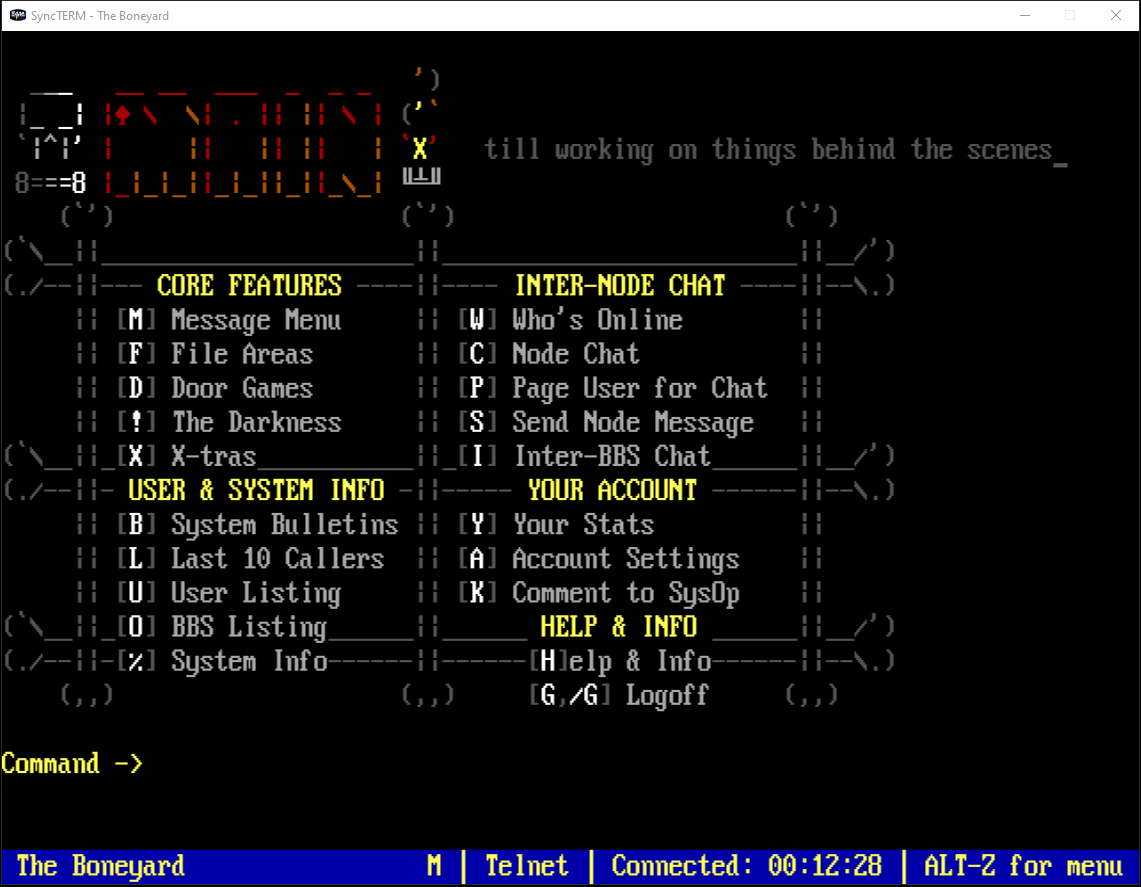
Main menu
You made it. The main menu is home base — messages, files, doors, and the rest. Type a menu letter or press ? for help. Go introduce yourself on the boards.
Other clients and SSH
SyncTERM is not the only option. NetRunner (from the Mystic author), MagiTerm, and mTelnet all work.